
Markers in Cinema 4D
VoxMark’s markers are ordinary Cinema 4D timeline markers, one per caption, ranged over the caption and coloured by its voice. The caption text is the marker’s name. Captions with no voice at all are VoxMark red.
VoxMark tags its own markers invisibly and links each to its caption, so editing, recolouring and recreating them never touch markers you placed yourself. There are three deliberate exceptions: Clear All Markers and Clear all existing markers first remove every marker, and the Aa and 1-frame toggles apply to every marker on the timeline.
When new markers run past the end of the scene, VoxMark extends the scene’s length and preview range to cover them.
The marker buttons
Section titled “The marker buttons”These sit under Markers on the Transcribe tab, and again on the Navigate tab.
| Button | What it does |
|---|---|
| Restore | Puts back the markers Save & Clear stored. It shows how many are stored, as Restore (12). A caption that already has a marker on the timeline isn’t doubled. |
| Import SRT… | Imports an SRT as a new transcript and markers. See SRT import & export. |
| Save & Clear | Stores VoxMark’s markers in the scene and takes them off the timeline. The transcript stays in the Navigate tab. Stored markers are saved with the .c4d. |
| Export SRT… | Exports the transcript as an SRT. See SRT import & export. |
| Clear All Markers | Removes every marker on the timeline — yours too — after asking. It also forgets anything Save & Clear stored. The transcript stays in the Navigate tab, ready to recreate VoxMark’s markers. |
Create markers from transcript
Section titled “Create markers from transcript”Lays one marker per caption from the saved transcript — after a transcript-only run, after clearing them, or to resync the timeline. Run it again and it replaces its own markers; markers you placed yourself are left alone.
It’s on the Transcribe tab, and as Create in the Navigate tab’s Transcript header. When a transcript has no markers at all, the Navigate tab also shows a Create markers button.
Rebuild transcript from markers
Section titled “Rebuild transcript from markers”Re-reads the markers on the timeline into the transcript, replacing the saved transcript (which is kept first — see Where VoxMark keeps things). Use it when the timeline is right and the transcript isn’t, or for a scene that has markers but no saved transcript. Voices you set up are kept, even if no caption uses them now.
Dragging markers by hand
Section titled “Dragging markers by hand”Move or stretch a VoxMark marker in the Timeline and the transcript follows: the caption takes the marker’s new time and length, and the list re-sorts. Exports use the new times.
If markers and transcript disagree
Section titled “If markers and transcript disagree”If the number of VoxMark markers no longer matches the saved transcript — you deleted some by hand, say — VoxMark says so in the status line when the scene loads. Use Rebuild to take what’s on the timeline, or Create markers from transcript to resync the timeline to the transcript.
Decluttering the timeline
Section titled “Decluttering the timeline”From the Navigate tab’s Transcript header:
- Aa hides the caption text on the markers, leaving clean coloured ranges. Click again to bring the text back. Markers created while the text is hidden arrive hidden too.
- 1-frame collapses ranged markers to single frames, and gives them their length back.
Both are fully reversible, and their state is saved with the scene.
Each VoxMark action — a transcription, an import, Create, Rebuild, a merge, an assign, a solo — is one undo step in Cinema 4D, covering the markers and the transcript together. Ctrl+Z puts both back, and the Navigate tab updates to match.
Two things Cinema 4D doesn’t record in undo: the preview range and the scene length, set by Set preview range to caption and Range to all.
Timing tools
Section titled “Timing tools”The Timing tools fold at the bottom of the Navigate tab (open by default) holds tools for adjusting caption timing. They work on the selected captions, or on all captions when none are selected — the line above the buttons says which.
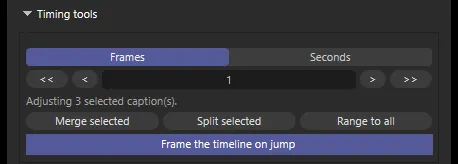
Nudge — choose Frames or Seconds, set a step value, then use < and > to move the captions back or forward by one step, or << and >> to move by ten steps. Markers and transcript move together. Nothing moves before zero.
Merge selected — joins two or more selected captions into one, from the first’s start to the last’s end, keeping the first caption’s voice.
Split selected — splits each selected caption in two at the middle word, sharing its time out by word count. A caption you merged earlier is split back into its original captions exactly — boundaries, gaps and voices — wherever it has moved since.
Range to all — sets the scene’s length and preview range to span every caption.
Frame the timeline on jump — when on, jumping to a caption also scrolls the Timeline to it.